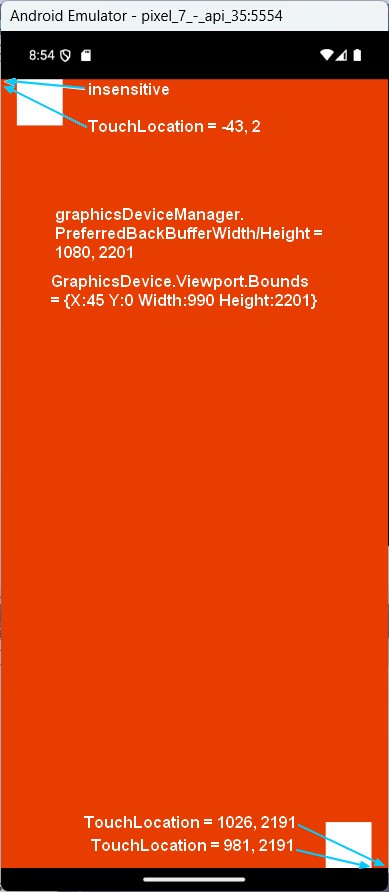
Hello, I’m having a consistency issue between the display coordinates and the coordinates returned by TouchPanel in my Android project. At the edges of the screen, there’s a difference of about 10 pixels in both height and width, which causes a significant offset in the bottm-right area of the screen. And after rotating the device it’s even worse, I have a 50-pixel shift in length ! When I try to redefine the ViewPort, the problem persists. However, TouchPanel.Width/Height and ViewPort.Width/Height are always equals. I think the problem comes with TouchPanel. Does anyone have a solution to this issue ?
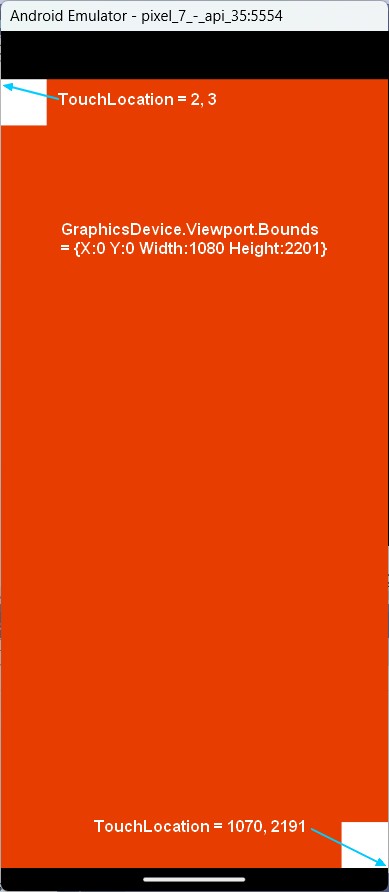
This smells like a notches/bevels/safearea issue to me. That said, I was unable to reproduce the issue. I think you have something else going on here. Tested using Pixel 7 emulator at API level 35 as well.
I use the Pixel 7 virtual device API 35 too. Device display resolution is 1080 x 2400. GraphicsAdapter.DefaultAdapter.CurrentDisplayMode.Width / Height returns 1080 x 2201 Window.ClientBounds.Size returns 1080 x 2201 TouchPanel.DisplayWidth / Height is also set to 1080 x 2201 But when i touch on extrem bottom-right corner, TouchPanel returns 1070, 2190. I’ve been looking for a solution all day, but I haven’t found a way to fix this issue
Check your Viewport to see if it is not at 0, 0 (graphics.GraphicsDevice.Viewport). Maybe try another emulator (different phone model).
Yes, I set manually the viewport to (0, 0, GraphicsAdapter.DefaultAdapter.CurrentDisplayMode.Width, GraphicsAdapter.DefaultAdapter.CurrentDisplayMode.Height) to get a fullscreen display. And the TouchPanel with same dimensions (TouchPanel doesn’t have X, Y parameters).
But even when I don’t set the viewport, it effectively has left and right margins of 45 pixels (on Pixel 7), and I also notice an error on the coordinates returned by TouchPanel.
I tried with a Nexus 7 API 36 virtual device, and the TouchLocation error on the extrem bottom-right corner is 4 pixels on the width and 40 pixels on the height !
Could it be that I’m the only one with this problem ?
My configuration : VS2022, Monogame 3.8.4.1 (last one)
No, it’s not just you, I’ve noticed the emulators can be a bit finicky from time to time in this area as well. I just don’t recall exactly how I dealt with it, and going through past projects’ source doesn’t reveal any obvious clues. There’s a good chance I just stopped using the emulators and exclusively tested on real devices, where iirc the only screen issues I had to contend with are the expected ones with notches/side beveles/safe area/etc.
Have you tried going to your emulator settings and disabling/enabling “Show window frame around device”? Are you working on a high DPI monitor that Windows is doing scaling things to?
Here’s a simple test Game1 I’ve been using to attempt to troubleshoot this (where it behaves as expected on my machine):
using System;
using System.Collections.Generic;
using System.Diagnostics;
using System.Linq;
using Microsoft.Xna.Framework;
using Microsoft.Xna.Framework.Graphics;
using Microsoft.Xna.Framework.Input.Touch;


namespace Project1
{
	public class Game1 : Game
	{
		private GraphicsDeviceManager graphics;
		private SpriteBatch spriteBatch;
		SpriteFont font;
		IEnumerable<TouchLocation> touchLocations;


		public Game1()
		{
			graphics = new GraphicsDeviceManager(this);
			Content.RootDirectory = "Content";
			IsMouseVisible = true;
		}


		protected override void Initialize()
		{
			base.Initialize();
		}


		protected override void LoadContent()
		{
			spriteBatch = new SpriteBatch(GraphicsDevice);
			font = Content.Load<SpriteFont>("font");
		}


		protected override void Update(GameTime gameTime)
		{
			touchLocations = TouchPanel.GetState();

			base.Update(gameTime);
		}


		protected override void Draw(GameTime gameTime)
		{
			GraphicsDevice.Clear(Color.MonoGameOrange);

			List<string> debugStrs =
			[
				$"CurrentDisplayMode: {GraphicsAdapter.DefaultAdapter.CurrentDisplayMode.Width}x{GraphicsAdapter.DefaultAdapter.CurrentDisplayMode.Height}",
				$"Viewport: {graphics.GraphicsDevice.Viewport}",
				$"Touches: {touchLocations.Count()}",
			];
			foreach (TouchLocation touchLocation in touchLocations)
				debugStrs.Add("    " + touchLocation.Position.ToString());

			spriteBatch.Begin();
			spriteBatch.DrawString(font, string.Join("\n", debugStrs), new Vector2(100, 200), Color.White);
			spriteBatch.End();

			base.Draw(gameTime);
		}
	}
}
Hello TheKelsam,
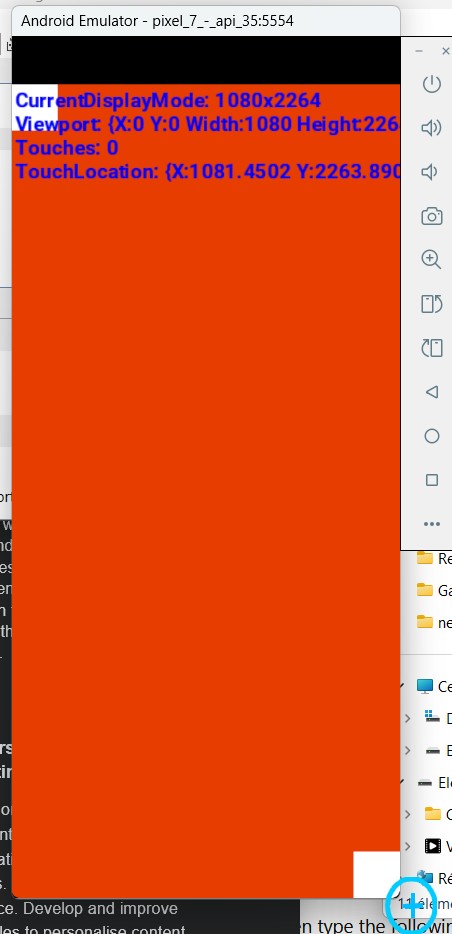
I tried to print traces as you suggested, and I notice that I can reach the TouchLocation 1081, 2264 (for a window size of 1080 x 2264), but at this time the mouse pointer is out of the device screen !
So I think this is an emulator bug, don’t you ?
Unfortunately, I can’t test that on my real device at this time since the app crashes at launching, don’t know why… =(
Finally tested on my real phone device. So with a game window of 1920 x 1008, TouchLocation is (11, 25) on the extreme top-left corner, and (1905, 995) on the bottom-right corner. I am well aware that we can’t reach such high precision with the finger, but this can certainly lead to some gameplay errors.
I think there will be no solution to this problem.
Sure there is. If being able to get right to the corners is important for your game then simply define a safe area that is X pixels (or even definable by user) inside the actual screen area and only render HUD/UI/whatever within that space. So, ideally you’d still draw to the whole screen (background or whatever else) and adjust your interactable elements to respect the “safe area”, but absolute worst case scenario you could even just set your viewport to 100, 100, 1720, 880 for example (100 pixels padding on all sides) ensuring that corners are reachable.
It’s funny because this used to be the norm actually for anyone programming games that were designed to be played on a TV (namely CRTs due to overscan), and in recent years it’s come back around because of phone bevels/notches/etc. Point being, just Google around for “safe area programming” and you’ll find all kinds of info about it.
Yes, of course, I wasn’t planning on placing widgets in the corners, nor using the edges as a sensitive area. A safe zone is indeed necessary to ensure the application adapts to each device. Nevertheless, the TouchPanel still returns an incorrect value, and the closer you get to the right or bottom edges, the larger the error.
That’s what bothers me the most…
I had similar issues before and the solution seemed to be defining the safe area yourself, but more specifically responding to resizing which happens when the app launches or orientation changes and it can be at a delay. I had to use Window.ClientSizeChanged to detect resizing and then calculate using Window.ClientBounds and something like below to offset it for the insets:
var windowInsets = Window.DecorView.RootWindowInsets;
if(windowInsets != null && windowInsets.HasInsets && Build.VERSION.SdkInt >= BuildVersionCodes.R)
{
	var totalInsets = Insets.None;
	Insets statusInsets = windowInsets.GetInsets(WindowInsets.Type.StatusBars());
	Insets cutoutInsets = windowInsets.GetInsets(WindowInsets.Type.DisplayCutout());
	Insets navInsets = windowInsets.GetInsets(WindowInsets.Type.NavigationBars());
	totalInsets = Insets.Add(Insets.Add(cutoutInsets, navInsets), statusInsets);
	return totalInsets;
}
return Insets.None;
And then you may need to implement a View.IOnApplyWindowInsetsListener and attach it in the Activity class to invoke a re-calculation once the insets were calculated by the system. Newer/more powerful devices work without this part in my experience though.
Also, if you want to check that you can get to the edge of the screen on a physical device, it helps to use Drag gestures like below. Keep in mind it continues to track the gesture already started even if you go outside the bounds of your app (for example you can get negative values for Y by dragging into the Status Bar).
if(gesture.GestureType == GestureType.FreeDrag || gesture.GestureType == GestureType.HorizontalDrag || gesture.GestureType == GestureType.VerticalDrag)
{
	touchLoc = new Point((int)(gesture.Position.X + gesture.Delta.X), (int)(gesture.Position.Y + gesture.Delta.Y));
}